


Tool Review: LinkedIn’s Native Resume Builder vs. "Save to PDF"
When job hunting, speed matters, but sending out a generic profile dump is a major reason applications vanish into a black hole.
LinkedIn offers two native ways to turn your profile into a document: the "Save to PDF" function and the lesser-known "Build a Resume" feature. Here is a practical breakdown of how they compare and how to use the built-in resume tool effectively.
The Comparison: "Save to PDF" vs. "Build a Resume
"Feature "Save to PDF" Button Built-In "Build a Resume" Tool
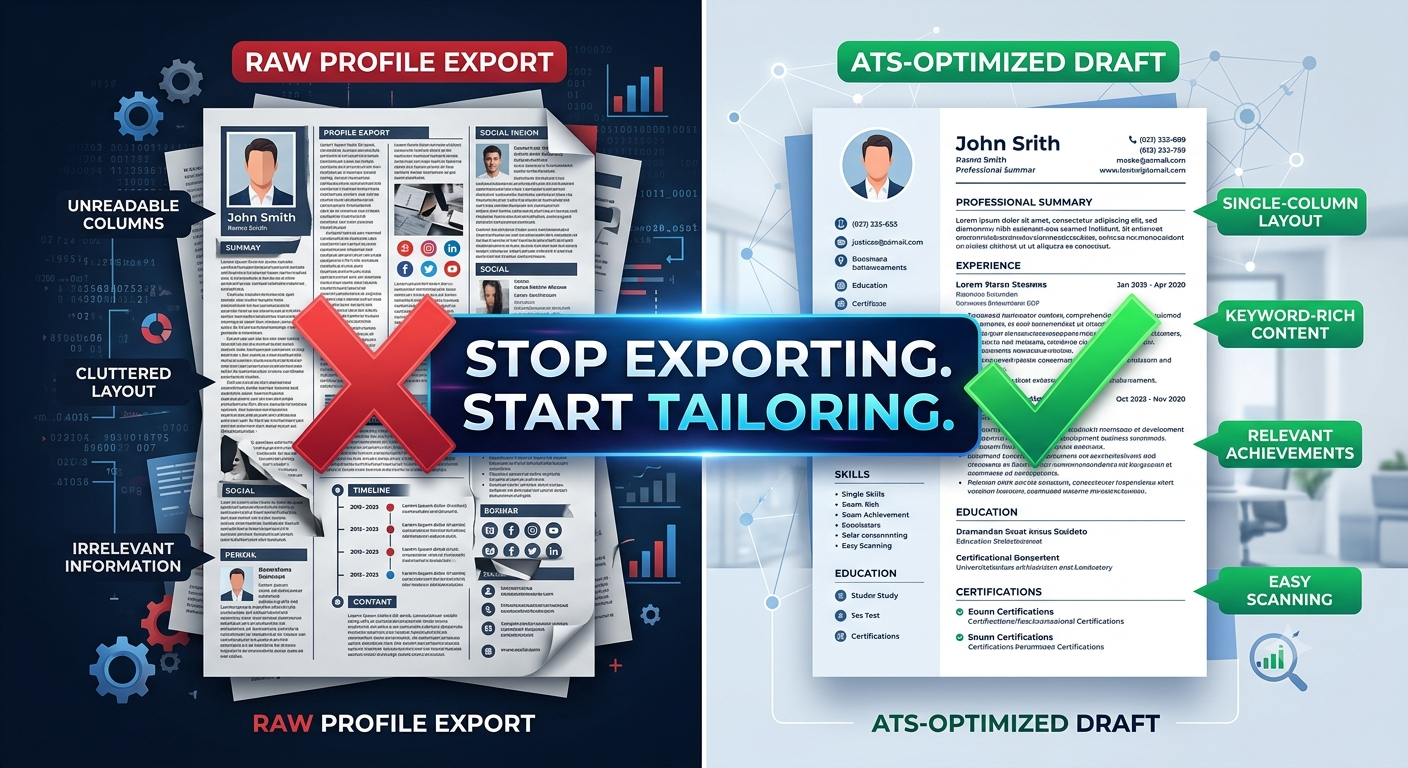
Output Raw profile dump Customized 1-2 page document
ATS Readability Poor (multi-column structure, non-standard headers) High (single-column layout, standard headers)
Tailoring Ability Zero (exports everything as-is) High (edit, reorder, or delete bullet points per job application)
Keyword Match None Includes a keyword insights engine based on target job titles
How to Use the Built-In Resume Tool (3 Actionable Steps)
1. Access the Tool from Desktop
Navigate to your profile on a desktop browser. Click the "More" button near your profile picture and select "Build a resume." Select "Create from profile."
2. Set Your Target Job Title for Keyword Optimization
The tool will prompt you to enter a target job title (e.g., "Software Engineer" or "Product Manager").
LinkedIn compares your profile content against common recruiter search terms for that role.
Use the "Keyword Insights" panel on the right sidebar to check which critical industry keywords are present in your draft and which ones you should add.
3. Strip Out "Social Media Fluff"
Your LinkedIn profile is designed for passive scrolling; your resume is designed for concise evaluation. Before downloading:
Shorten the summary: Condense a long narrative "About" section into a 3-line elevator pitch.
Trim bullet points: Convert paragraphs under past roles into 3–4 achievement-focused points using strong action verbs.
Remove non-essential sections: Uncheck irrelevant items (like personal causes or hobbies) so the layout stays tightly focused on professional impact.
Key Takeaways
Avoid "Save to PDF" for applications: It outputs a bloated profile export that struggles with ATS parsers.
Leverage built-in keyword checks: Use LinkedIn’s target job title feature to ensure your key skills match what recruiters search for.
Format for the reader: Strip out social narrative text and present clean, impact-driven bullet points.
CTA
Looking for guidance on navigating job applications, refining your interview approach, or finding your next role? Join Tech Jobs & Opportunities on Techawks today to get expert tips and discover open positions.
When job hunting, speed matters, but sending out a generic profile dump is a major reason applications vanish into a black hole.
LinkedIn offers two native ways to turn your profile into a document: the "Save to PDF" function and the lesser-known "Build a Resume" feature. Here is a practical breakdown of how they compare and how to use the built-in resume tool effectively.
The Comparison: "Save to PDF" vs. "Build a Resume
"Feature "Save to PDF" Button Built-In "Build a Resume" Tool
Output Raw profile dump Customized 1-2 page document
ATS Readability Poor (multi-column structure, non-standard headers) High (single-column layout, standard headers)
Tailoring Ability Zero (exports everything as-is) High (edit, reorder, or delete bullet points per job application)
Keyword Match None Includes a keyword insights engine based on target job titles
How to Use the Built-In Resume Tool (3 Actionable Steps)
1. Access the Tool from Desktop
Navigate to your profile on a desktop browser. Click the "More" button near your profile picture and select "Build a resume." Select "Create from profile."
2. Set Your Target Job Title for Keyword Optimization
The tool will prompt you to enter a target job title (e.g., "Software Engineer" or "Product Manager").
LinkedIn compares your profile content against common recruiter search terms for that role.
Use the "Keyword Insights" panel on the right sidebar to check which critical industry keywords are present in your draft and which ones you should add.
3. Strip Out "Social Media Fluff"
Your LinkedIn profile is designed for passive scrolling; your resume is designed for concise evaluation. Before downloading:
Shorten the summary: Condense a long narrative "About" section into a 3-line elevator pitch.
Trim bullet points: Convert paragraphs under past roles into 3–4 achievement-focused points using strong action verbs.
Remove non-essential sections: Uncheck irrelevant items (like personal causes or hobbies) so the layout stays tightly focused on professional impact.
Key Takeaways
Avoid "Save to PDF" for applications: It outputs a bloated profile export that struggles with ATS parsers.
Leverage built-in keyword checks: Use LinkedIn’s target job title feature to ensure your key skills match what recruiters search for.
Format for the reader: Strip out social narrative text and present clean, impact-driven bullet points.
CTA
Looking for guidance on navigating job applications, refining your interview approach, or finding your next role? Join Tech Jobs & Opportunities on Techawks today to get expert tips and discover open positions.
Tool Review: LinkedIn’s Native Resume Builder vs. "Save to PDF"
When job hunting, speed matters, but sending out a generic profile dump is a major reason applications vanish into a black hole.
LinkedIn offers two native ways to turn your profile into a document: the "Save to PDF" function and the lesser-known "Build a Resume" feature. Here is a practical breakdown of how they compare and how to use the built-in resume tool effectively.
The Comparison: "Save to PDF" vs. "Build a Resume
"Feature "Save to PDF" Button Built-In "Build a Resume" Tool
Output Raw profile dump Customized 1-2 page document
ATS Readability Poor (multi-column structure, non-standard headers) High (single-column layout, standard headers)
Tailoring Ability Zero (exports everything as-is) High (edit, reorder, or delete bullet points per job application)
Keyword Match None Includes a keyword insights engine based on target job titles
How to Use the Built-In Resume Tool (3 Actionable Steps)
1. Access the Tool from Desktop
Navigate to your profile on a desktop browser. Click the "More" button near your profile picture and select "Build a resume." Select "Create from profile."
2. Set Your Target Job Title for Keyword Optimization
The tool will prompt you to enter a target job title (e.g., "Software Engineer" or "Product Manager").
LinkedIn compares your profile content against common recruiter search terms for that role.
Use the "Keyword Insights" panel on the right sidebar to check which critical industry keywords are present in your draft and which ones you should add.
3. Strip Out "Social Media Fluff"
Your LinkedIn profile is designed for passive scrolling; your resume is designed for concise evaluation. Before downloading:
Shorten the summary: Condense a long narrative "About" section into a 3-line elevator pitch.
Trim bullet points: Convert paragraphs under past roles into 3–4 achievement-focused points using strong action verbs.
Remove non-essential sections: Uncheck irrelevant items (like personal causes or hobbies) so the layout stays tightly focused on professional impact.
Key Takeaways
Avoid "Save to PDF" for applications: It outputs a bloated profile export that struggles with ATS parsers.
Leverage built-in keyword checks: Use LinkedIn’s target job title feature to ensure your key skills match what recruiters search for.
Format for the reader: Strip out social narrative text and present clean, impact-driven bullet points.
CTA
Looking for guidance on navigating job applications, refining your interview approach, or finding your next role? Join Tech Jobs & Opportunities on Techawks today to get expert tips and discover open positions.

 English
 Arabic
 French
 Spanish
 Portuguese
 Deutsch
 Turkish
 Dutch
Dutch
 Italiano
 Russian
 Romaian
 Greek
Greek