


Figma for Product Managers: The Essential Feature Set for Clearer Requirements
Product managers don't need to craft custom iconography or balance typography hierarchies. However, relying solely on static text documents or outdated slide decks to explain user flows creates friction and misunderstandings between product, design, and engineering teams.
Here is a practical breakdown of how PMs can leverage Figma to communicate user intent, map feature requirements, and streamline product discovery:
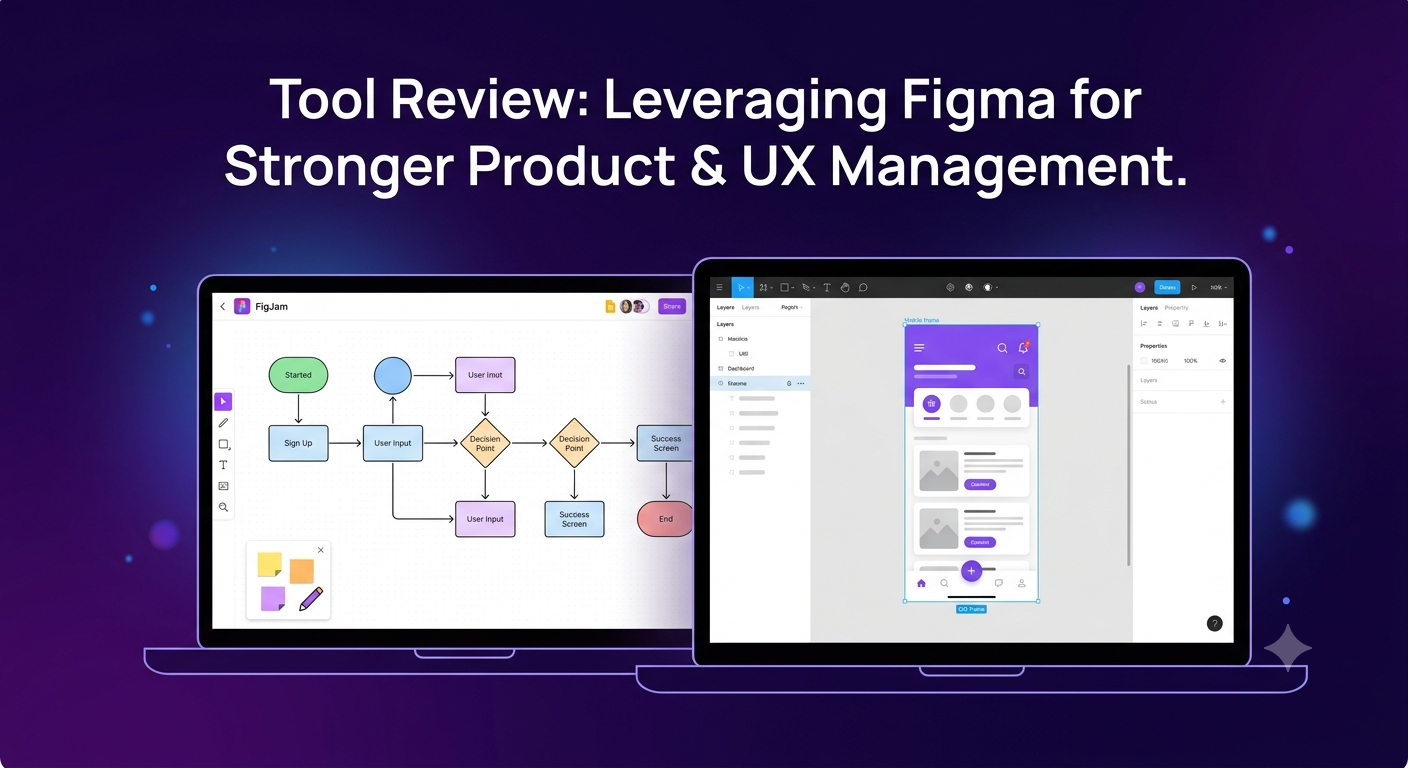
1. FigJam for Early Discovery & User Flows
Before jumping into UI fidelity, map out system logic collaboratively.
How to use it: Use FigJam boards for user journey mapping, feature prioritization matrices (Impact vs. Effort), and low-fidelity flowcharting.
Why it matters: It aligns engineering and design on edge cases and system logic before anyone wastes time pixel-pushing.
2. Interactive Component Variants for Prototyping Scenarios
You don't need to build full prototypes to test a feature hypothesis.
How to use it: Leverage existing design system components to swap states (e.g., Hover, Active, Disabled, or Error) directly on the canvas.
Why it matters: Demonstrating error states and edge cases visually in a PRD prevents last-minute scope creep during sprint planning.
3. Canvas Comments & Audio Spotlights for Async Reviews
Stop scheduling 30-minute alignment meetings for minor feature clarification.
How to use it: Drop pinned comments directly on specific UI frames or use Figma's built-in audio calls and "Spotlight" features to guide asynchronous walkthroughs.
Why it matters: Keeps feedback contextual, documented, and actionable right next to the design artifacts.
4. Dev Mode Inspection for Realistic Scoping
Understanding how design tokens and layouts translate to code helps you write better user stories.
How to use it: Toggle Dev Mode to inspect padding, auto-layout rules, and asset specs.
Why it matters: Gives PMs visibility into design complexity so you can estimate engineering effort more accurately during backlog grooming.
Key Takeaways
Visual specs beat walls of text: Embedding interactive Figma frames into PRDs drastically increases team comprehension.
Focus on edge cases: Use component variants to visually highlight error states, empty states, and loading behavior early.
Streamline async communication: Contextual canvas commenting reduces meeting overhead and preserves decisions in one central hub.
CTA
Want to sharpen your product thinking and build seamless collaboration between product and design?
👉 Join our Product, UX & Design community today to access actionable frameworks, teardowns, and peer feedback!
Product managers don't need to craft custom iconography or balance typography hierarchies. However, relying solely on static text documents or outdated slide decks to explain user flows creates friction and misunderstandings between product, design, and engineering teams.
Here is a practical breakdown of how PMs can leverage Figma to communicate user intent, map feature requirements, and streamline product discovery:
1. FigJam for Early Discovery & User Flows
Before jumping into UI fidelity, map out system logic collaboratively.
How to use it: Use FigJam boards for user journey mapping, feature prioritization matrices (Impact vs. Effort), and low-fidelity flowcharting.
Why it matters: It aligns engineering and design on edge cases and system logic before anyone wastes time pixel-pushing.
2. Interactive Component Variants for Prototyping Scenarios
You don't need to build full prototypes to test a feature hypothesis.
How to use it: Leverage existing design system components to swap states (e.g., Hover, Active, Disabled, or Error) directly on the canvas.
Why it matters: Demonstrating error states and edge cases visually in a PRD prevents last-minute scope creep during sprint planning.
3. Canvas Comments & Audio Spotlights for Async Reviews
Stop scheduling 30-minute alignment meetings for minor feature clarification.
How to use it: Drop pinned comments directly on specific UI frames or use Figma's built-in audio calls and "Spotlight" features to guide asynchronous walkthroughs.
Why it matters: Keeps feedback contextual, documented, and actionable right next to the design artifacts.
4. Dev Mode Inspection for Realistic Scoping
Understanding how design tokens and layouts translate to code helps you write better user stories.
How to use it: Toggle Dev Mode to inspect padding, auto-layout rules, and asset specs.
Why it matters: Gives PMs visibility into design complexity so you can estimate engineering effort more accurately during backlog grooming.
Key Takeaways
Visual specs beat walls of text: Embedding interactive Figma frames into PRDs drastically increases team comprehension.
Focus on edge cases: Use component variants to visually highlight error states, empty states, and loading behavior early.
Streamline async communication: Contextual canvas commenting reduces meeting overhead and preserves decisions in one central hub.
CTA
Want to sharpen your product thinking and build seamless collaboration between product and design?
👉 Join our Product, UX & Design community today to access actionable frameworks, teardowns, and peer feedback!
Figma for Product Managers: The Essential Feature Set for Clearer Requirements
Product managers don't need to craft custom iconography or balance typography hierarchies. However, relying solely on static text documents or outdated slide decks to explain user flows creates friction and misunderstandings between product, design, and engineering teams.
Here is a practical breakdown of how PMs can leverage Figma to communicate user intent, map feature requirements, and streamline product discovery:
1. FigJam for Early Discovery & User Flows
Before jumping into UI fidelity, map out system logic collaboratively.
How to use it: Use FigJam boards for user journey mapping, feature prioritization matrices (Impact vs. Effort), and low-fidelity flowcharting.
Why it matters: It aligns engineering and design on edge cases and system logic before anyone wastes time pixel-pushing.
2. Interactive Component Variants for Prototyping Scenarios
You don't need to build full prototypes to test a feature hypothesis.
How to use it: Leverage existing design system components to swap states (e.g., Hover, Active, Disabled, or Error) directly on the canvas.
Why it matters: Demonstrating error states and edge cases visually in a PRD prevents last-minute scope creep during sprint planning.
3. Canvas Comments & Audio Spotlights for Async Reviews
Stop scheduling 30-minute alignment meetings for minor feature clarification.
How to use it: Drop pinned comments directly on specific UI frames or use Figma's built-in audio calls and "Spotlight" features to guide asynchronous walkthroughs.
Why it matters: Keeps feedback contextual, documented, and actionable right next to the design artifacts.
4. Dev Mode Inspection for Realistic Scoping
Understanding how design tokens and layouts translate to code helps you write better user stories.
How to use it: Toggle Dev Mode to inspect padding, auto-layout rules, and asset specs.
Why it matters: Gives PMs visibility into design complexity so you can estimate engineering effort more accurately during backlog grooming.
Key Takeaways
Visual specs beat walls of text: Embedding interactive Figma frames into PRDs drastically increases team comprehension.
Focus on edge cases: Use component variants to visually highlight error states, empty states, and loading behavior early.
Streamline async communication: Contextual canvas commenting reduces meeting overhead and preserves decisions in one central hub.
CTA
Want to sharpen your product thinking and build seamless collaboration between product and design?
👉 Join our Product, UX & Design community today to access actionable frameworks, teardowns, and peer feedback!

 English
 French
 Spanish
 Portuguese
 Deutsch
 Turkish
 Dutch
Dutch
 Italiano
 Russian
 Romaian
 Portuguese (Brazil)
 Greek
Greek